
Finding Images by Week
ChurchArt Online is always adding new images, illustrations, photos, and templates to the library — not on a rigid weekly schedule, but as new content becomes ready. Here's how to find the newest art and download exactly what you need.
Find the newest art
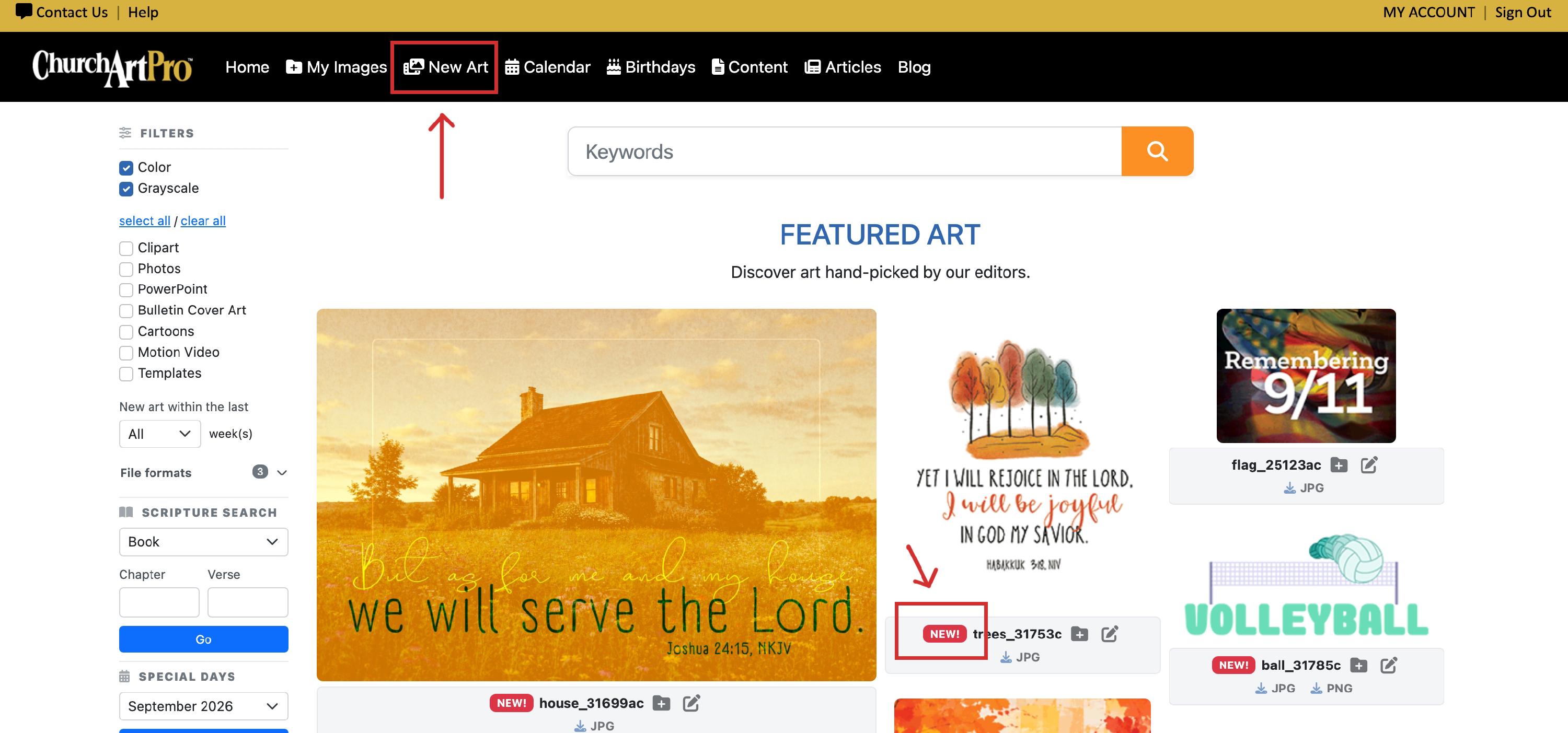
Click New Art in the top navigation menu. This takes you straight to the latest additions to the library, sorted with the newest art first.
Look for the NEW! badge on a thumbnail — that flags art that's recently been added, so you can spot it at a glance while browsing.
Go back to an earlier date
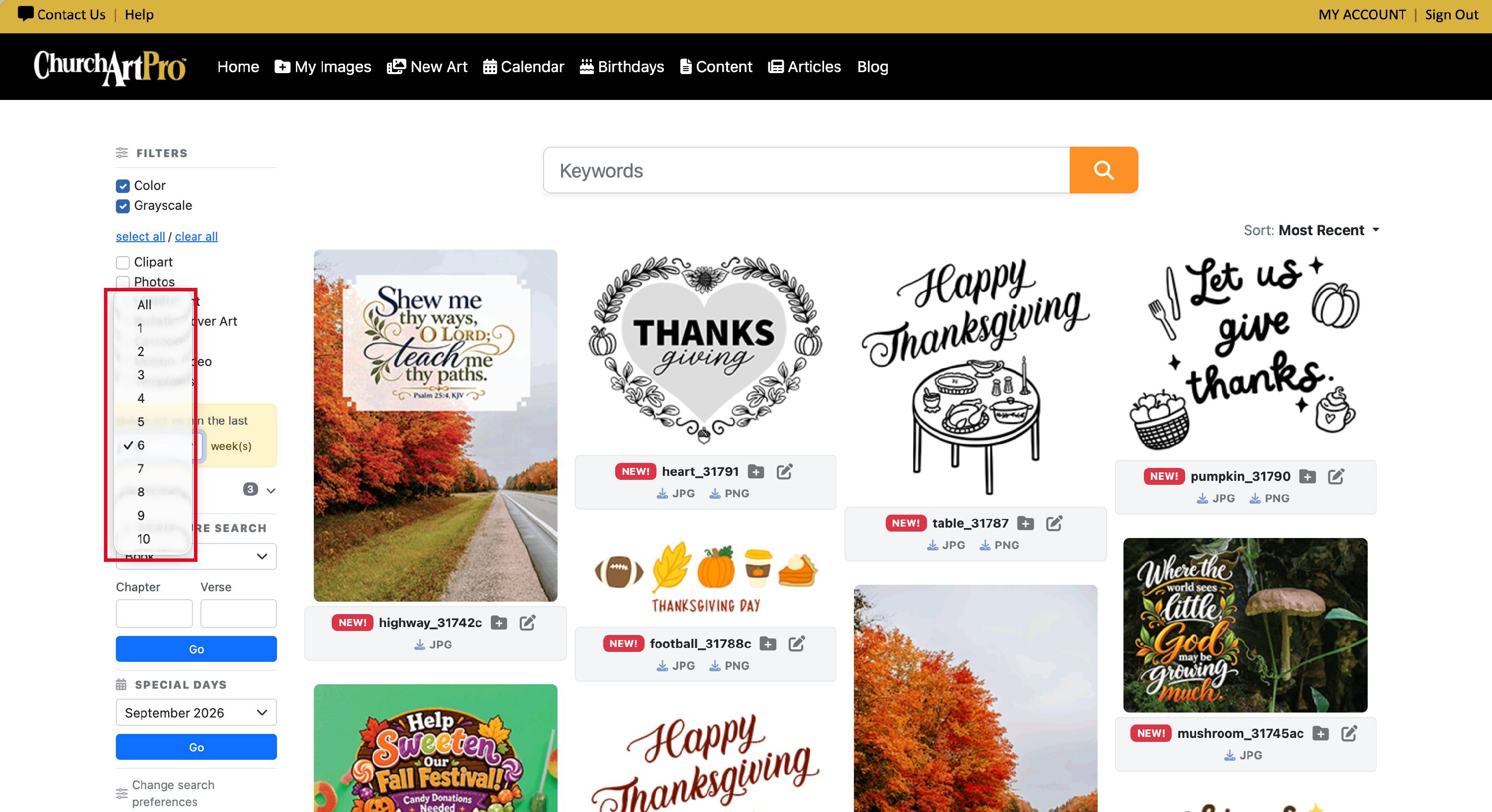
- From the New Art view (or from any search results), open the filters on the left.
- Under New Art, choose how far back to look — for example, the last few weeks — or pick a specific date to see everything added on or after that day.
- Your results update to show art from that timeframe
Download what you find
Click any image to open its detail page. From there, choose your preferred format (GIF, JPG, PNG, and others depending on the image) and download it — the same download options you're used to.
Tips
- Combine the New Art filter with keyword search, Topic, or Image Type filters to narrow things down even further — for example, "new art in the last 2 weeks" + Topic: Easter.
- New art shows up continuously, so it's worth checking back throughout the week rather than waiting for one specific day.
For more information, see our other help document about Searching for Images.